Let’s look at the issue of Internet Explorer 8 in Windows not loading pages even though other installed browsers such as FireFox or Google Chrome are working fine.
When trying to connect to the Internet, you’ll receive an error message similar too:
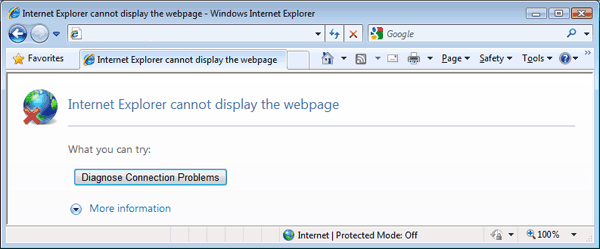
Possible Solutions For Fixing IE 8 Connectivity
Make sure your computer LAN drivers are up-to-date. We recommend you always run a recommended driver software update tool such as DriverFinder on a normal basis.
Option 1:
- Disable all add-ons in IE 8 and restart your computer. Once it reboots, check for network connectivity.
Option 2:
- Go to Internet Options > Connections > Lan Settings and uncheck the “Automatically detect settings” checkbox.
- Restart your computer and check for network connectivity.
Option 3:
- Go to Control Panel > System and Security > Windows Firewall > Allowed Programs and make sure “HomeGroup” is checked.
One of these three options should allow Interenet Explorer to connect to your network. If not, you most likely have a registry error or conflicting network application that is currently running which is blocking IE from connecting through your network. Double check any third-party anti-malware or virus/spyware software you might have installed.